
To create an email account with cPanel simply login to your control panel (Usually located at example.com/cpanel or example.com:2083)
-
Once logged in, look for the
EmailSection and click on theEmail Accountssetting, as illustrated below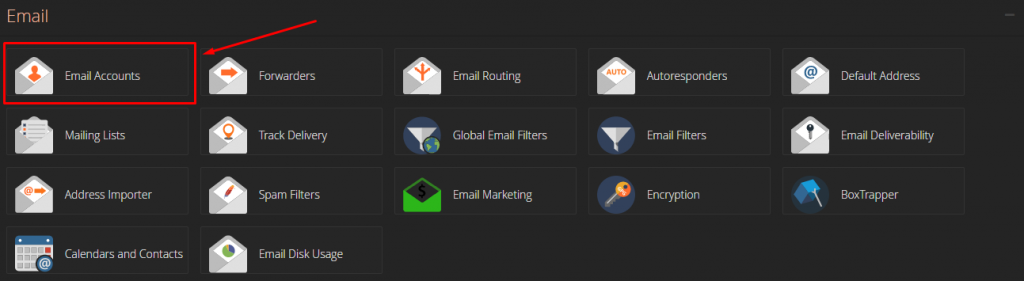
-
Once presented with the Email Accounts page, simply locate and click on the
Createbutton -
An email account creation form should now be generated, simply fill in the details/settings to your liking and click “create”
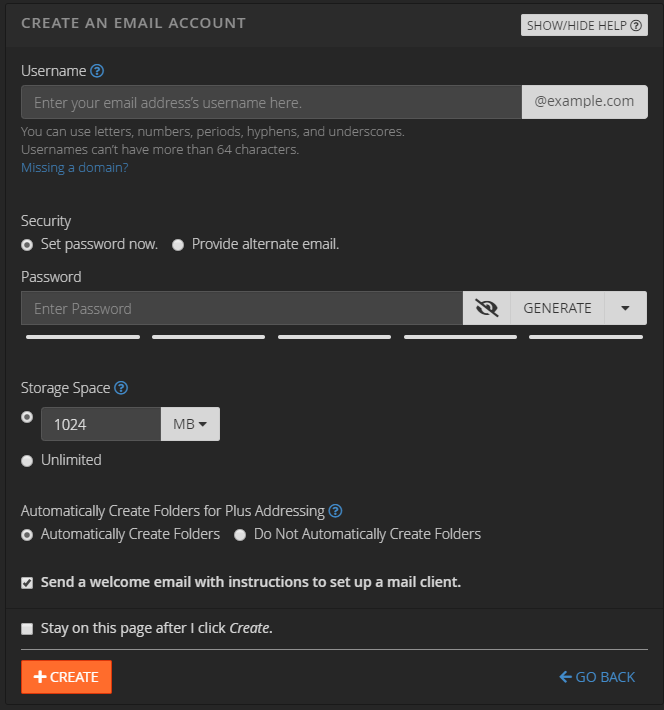
- Username: The username of your email account, which is the email address basically. For example, username@domain.com
- Security: The password of your email account
- Storage Space: The total disk space that the email account is allowed to use from your total hosting accounts disk space.
- Create Folders for Plus Addressing: Basically creates a new folder if the email address is addressed with a “+”. For example an email sent to username+tom@example.com will open a folder under “Tom” within the email account. We would recommend keeping this enabled.
